Line items tab
Vendor change order line items show how you are going to apply the amount you indicated in the VCO to the contract. Under the VCO’s Line items tab, you indicate what line items in the contract pertain to this change order. After you execute and publish a vendor change order, the Line items tab is a snapshot of the values at the time of execution.
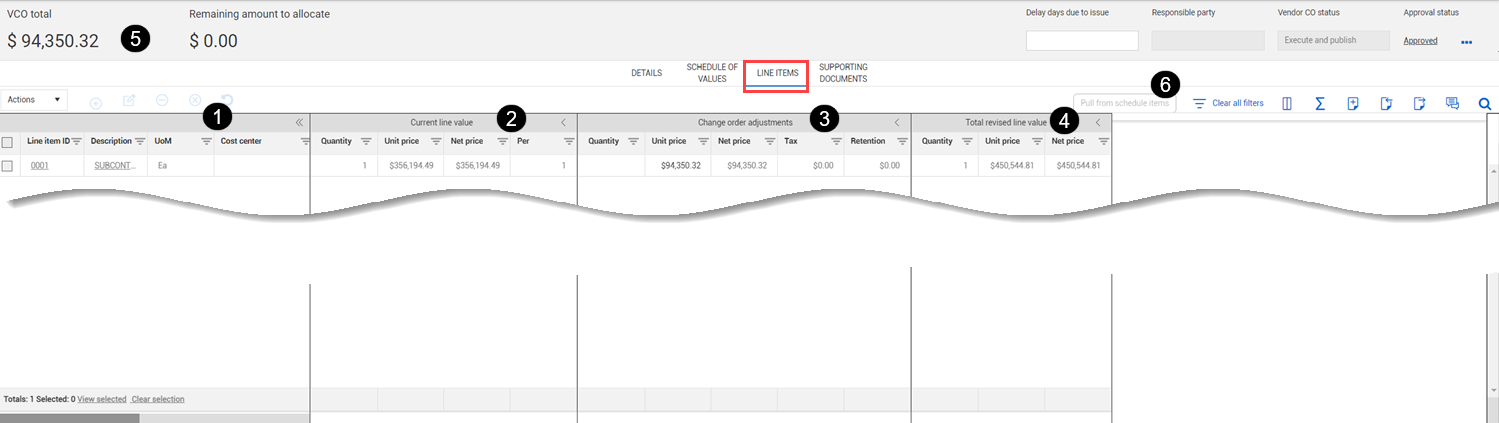
The Line items tab lets you manage the line items for a vendor change order. The Line items tab is described below.
| |
Field/Section |
Function |
|
1
|
Line item details
|
This section of the register contains the Line item ID, Description, UoM, WBS, GL account, Product category, and Long description. You can scroll to view all the columns.
|
|
2
|
Current line value
|
For line items that already exist, containing their original quantities and pricing.
|
|
3
|
Change order adjustments
|
Displays the adjusted quantities and pricing you add to existing line items or define on newly added line items.
|
|
4
|
Total revised line value
|
The total of the Current line values and Change order adjustments added together.
|
|
5
|
Remaining amount to allocate
|
As you total up your line items, their total amounts subtract from the VCO total to give you the remaining amount that needs to be allocated.
|
| 6 |
Pull from schedule items |
Lets you pull items from the Schedule of values page to update the line items. |
When a line item has been revised but not published, a Revised line item icon shows in the Line item ID column for that line item. The icon lets you quickly see that changes have been made to the line item, and you can decide if you want to proceed with the VCO or payment form.
Line items register
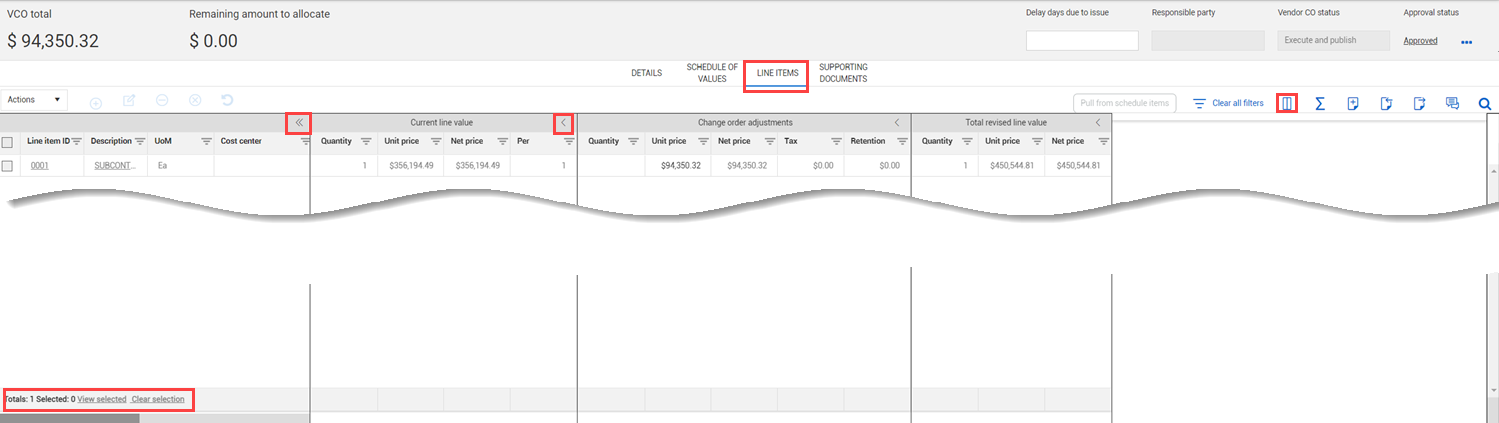
The Vendor change order line items register lists all line items for the vendor change order. Arrows in the column headers let you collapse or expand the section. Multiple sections can be collapsed. The first section, which includes the Line item ID, Description, UoM, and Cost center, cannot be collapsed. You can click the double arrow in the first section to collapse the rest of the sections.
The bottom of the grid shows the total number of items and the total number of selected items. To see only the selected items, click View selected. Click Clear selection to deselect all items.
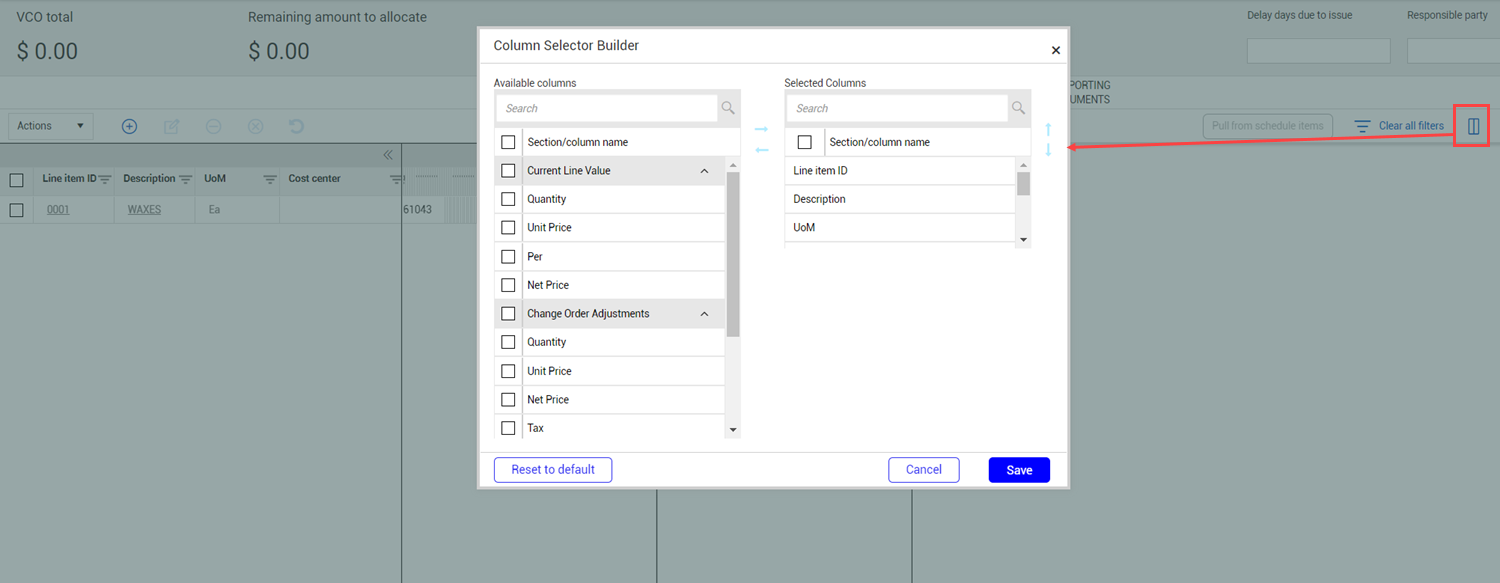
You can rearrange the columns within a section using the Column Selector Builder. To open the Column Selector Builder, click the Manage columns icon. The Available columns section shows all columns that are available for each section. To add a selection or column, select it, and then move it to the Selected Columns section. To remove a section or column, select it, and then move it to the Available columns section. Click Save to apply the changes. You can also rearrange sections from the Column Selector Builder dialog box. To move a section, select it, and then use the arrows to move the section up or down. You cannot add columns to the first section in the grid. You cannot move columns between sections.
You can search for specific available or selected columns. For example, you could search for value Price, and the search results show all columns called Unit Price and Net Price in all sections.
Vendor change order line items
On your VCOs, you can indicate the line item breakdown of the agreed upon change order amount in one of the following ways:
- Add line items that already exist on the contract and alter them
- Copy line items from the VCO Line items page
- Create new line items to document the change
You must publish the contract before you can bring line items into the VCO or create a new line item from a VCO.
Executing a vendor change order will update the contract line items, contract total, and the ERP system purchase order
Enter line items into a Vendor Change Order
-
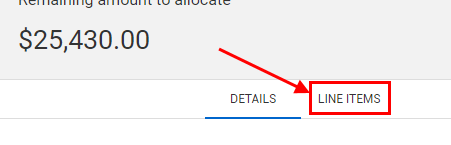
Click the Line Items tab in the Vendor Change Order.
-
Click the Add line item icon, and then select Add existing line item or Add new line item. If you have a master agreement in place for the contract, you can select From master agreement. For this step by step, select Add existing line item.
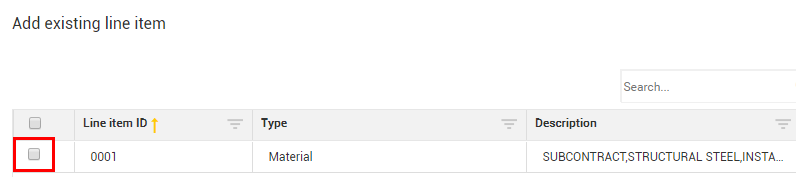
The Add existing line item dialog box opens.
-
Select a line item.
-
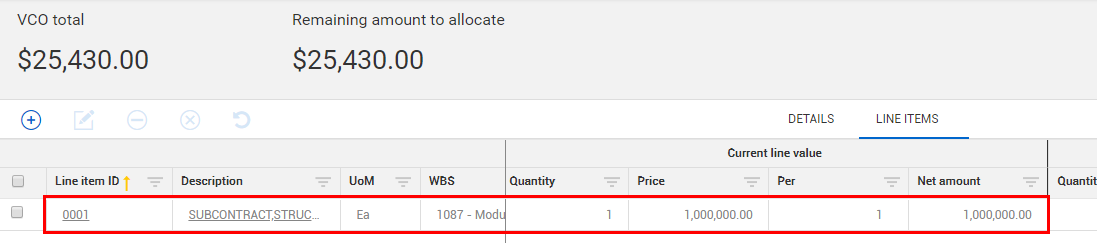
Click Add. The line item is added to your vendor change order
You can also add a line by copying an existing line. To copy a line in the Line items register, select the line and then click the Copy icon. Select Line item to copy to the register. You can select which sections you want to copy. You can then edit the line item is needed. The copied line item ID is New. A line item ID is assigned after the VCO is executed.
Pull schedule items into the Line items page
After you update the quantities for a submission in the Schedule of values tab, you can pull the items from the schedule of values to update the line items page.
The Pull from schedule items button is enabled if any of the schedule items have a Contract line item ID. When the line item ID is blank on all schedule of value items, the Pull from schedule items button is disabled, and you cannot pull items from the schedule of values. The contract must be published to pull schedule items to the Line items tab.
-
From the Line items tab, click Pull from schedule items. A warning message indicates that values in the line items will be overwritten. If the associated line item has a unit price of zero, the message indicates that the adjustment quantity and unit price cannot be calculated and asks if you want to proceed.
-
Click Yes. The values from the Schedule of values page overwrite the values on the Line items page. If there are no values on the Schedule of values page, Contract sets the quantity and net price to 0.00. Any value or line item that is not associated to schedule items is removed. If the line item has a unit value of zero, no values are calculated for the Change order adjustments section of the vendor change order. You can add them manually.
Import and export line items
A convenient way to add line items is to import them using a line items template. You can also export line items for reviewing and updating offline. You can import or export from the vendor change order Line items tab.
Import line items
Contract provides an import template that you can use to enter line items in bulk. From a vendor change order, go to the Line items tab, and then click the Import data from template icon.
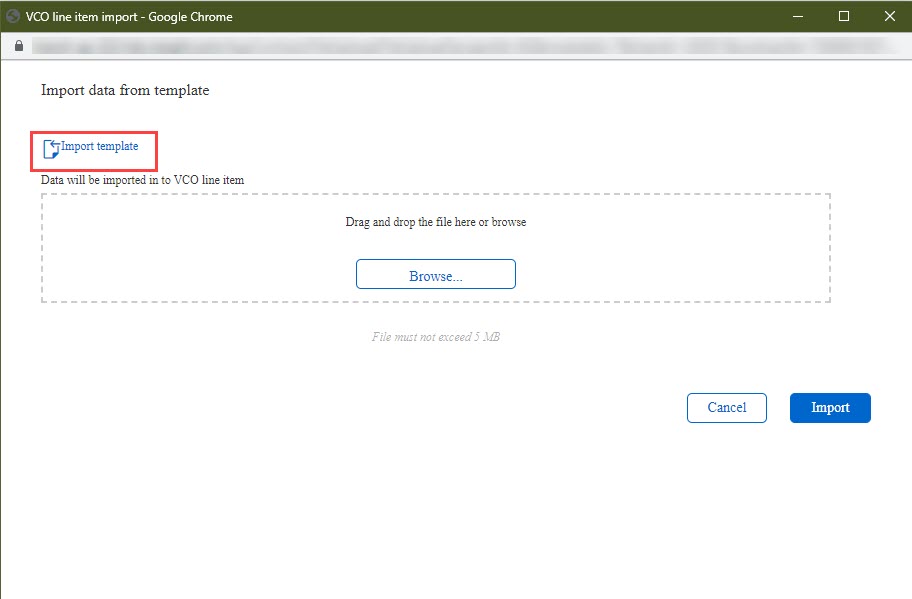
The Import data from template opens, and you can click Import template to download the template. InEight updates the template frequently to match the updates to Contract, so it is recommended to download a new template each time you plan to import.
The first page of the template contains the instructions for the templates. The guidelines describe the information on the import template, exporting with data, and how to update or add more information to the existing data. The Template page is where you enter you line items. The columns are color coded to indicate which columns are system generated, required data, optional data, and ignored data. You can complete the required areas for the line items. After you complete the spreadsheet, save it and drag it onto the dialog box, and then click Import to import the line items into contract.
Contract validates the dates based on the person who imports the data. If the dates do not match the preferences of that person, Contract generates an error in the import history and removes the date.
Do not change the name of the spreadsheet tabs.
After importing, you receive an email message listing status, the total line items, the total imported, and number of errors. If the status is pending, click the Review data link to see the line items that have completed and those with errors. You can correct the lines with errors from the Import history grid, select them, and then click Import to continue with the import process. The import is reprocessed, and Contract sends you an email message when the import is completed. The VCO line items tab shows the lines that were imported with the Line item ID New.
Export line items
The export function lets you export line items with data. If there are no line items in the VCO but there are line items for the contract, the export template lists all lines tied to the contract. If you add a line to the VCO and you export with data again, it only pulls the line that you added. The line does not have a line item ID.